
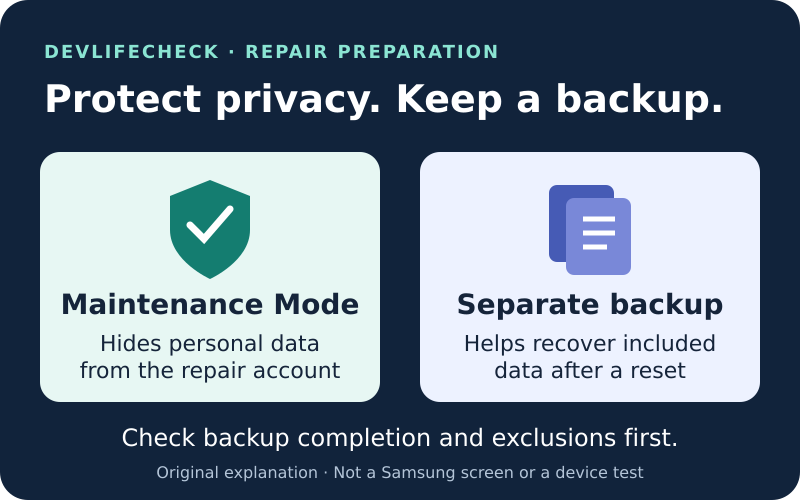
Back up your Galaxy before handing it over, even if you use Maintenance Mode. The mode hides personal information from the repair account; it does not prevent a factory reset or replacement of storage. Finish the backup, check what it excludes, and confirm the repair provider's instructions before switching modes.
Source: Use Maintenance mode on your Galaxy phone or tablet
Source: Maintenance Mode: separate account and what is removed on exit
Start with the service you actually booked
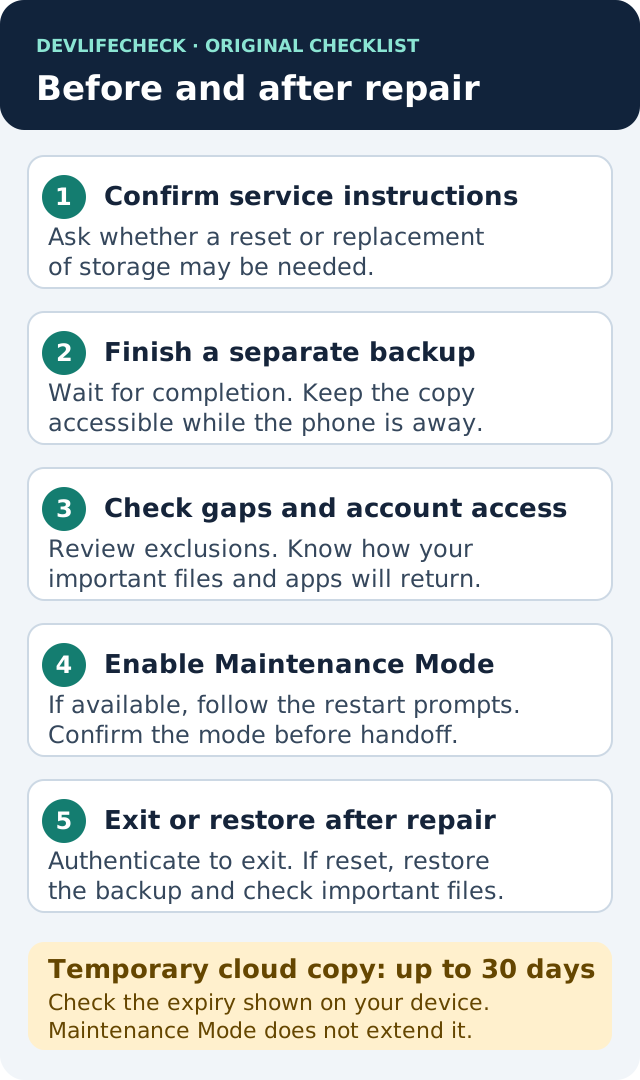
Samsung's US preparation page separates mail-in and walk-in service. Open the checklist for your service type and keep the repair reference somewhere other than the phone. Our suggested question is: Can you diagnose this fault in Maintenance Mode, and might this repair require a reset or replacement of storage? Ask before arrival so you can arrange a usable backup. Do not assume another customer's repair experience establishes your provider's procedure.
Choose a backup you can recover in time
If Temporary Cloud Backup is available, Samsung says the copy lasts up to 30 days from the initial backup and is then deleted. It requires a Samsung account and Wi-Fi; individual files are capped at 100 GB. Availability varies by model, market and carrier. Record the expiry shown on your device. If repair timing is uncertain, our recommendation is to keep an additional independent copy of important files instead of relying on that temporary window alone.
Use external storage when it fits your device
Samsung documents Smart Switch backups to a compatible USB drive, or a microSD card where the device supports one. Storage capacity must cover the selected content. Choose the items, wait for completion and disconnect the backup medium before the repair handoff. A computer backup is another documented route. Keep the backup where you can access it while the phone is away; a copy that stays only on the damaged device is not a recovery plan.
Source: Transfer content with external storage and Smart Switch
Source: Back up and restore data or files on your Galaxy phone or tablet
Check the gaps instead of assuming everything copied
Samsung's Smart Switch list excludes some content, including app data in private storage. Data from synced accounts returns through the account rather than through that transfer. Read the exclusions in the backup screen. Our practical check: list your irreplaceable photos, documents, messages and essential apps, then write down which backup or account will restore each. Verify access to those accounts from a trusted device. For an app's own export or recovery method, use that app's official instructions; a successful phone backup does not prove every app session will return.
Turn on the mode after the backup finishes
Samsung's US guide requires One UI 5 or later and a screen lock; settings can vary by carrier and software. Go to Settings → Device care → Maintenance mode, select Turn on and follow the restart prompts. Samsung Members also offers the feature through Support. If the option is missing or the screen cannot be used, ask Samsung about the exact model and damage rather than assuming the phone supports this workflow. Never treat a menu path in a different country's guide as proof for your device.
Use this handoff note
Copy and complete this note for yourself: Model and software: __. Service type/reference: __. Latest completed backup and location: __. Temporary-copy expiry, if used: __. Important items excluded or handled separately: __. Provider's reset/storage-replacement answer: __. Maintenance Mode confirmed after restart: __. Keep passwords, unlock codes and recovery codes out of this note if you plan to share it. The checklist is our preparation aid, not a service-center requirement.
When the phone comes back
If it is still in Maintenance Mode, use its notification or Settings entry to exit, restart and authenticate. Data or apps created within that mode are removed on exit. If the repair reset the phone, complete setup and restore the relevant backup; leaving Maintenance Mode cannot recover erased files. Check a recent photo, an important document and your essential apps before treating recovery as complete. Compare those checks with your handoff note, and restore a temporary cloud copy before its expiry.
Source: Maintenance Mode: separate account and what is removed on exit
Source: Back up and restore data or files on your Galaxy phone or tablet
Example: the repair takes longer than expected
Suppose your device shows a temporary backup with only three days remaining, but the repair has no confirmed completion date. Do not interpret Maintenance Mode as an extension of cloud storage. Contact the provider about timing and use another available copy or Samsung's documented recovery options. This is a hypothetical planning example, not a repair we performed. A backup protects recoverability only to the extent that the needed content was included and the copy remains accessible.
Related next steps
How this guide was produced
Prepared with AI-assisted research and editorial checks against Samsung's linked US guidance on October 17, 2026. This is a source-based preparation checklist, not a hands-on test, a security audit or a promise that a repair will preserve data. Other countries and service providers may have different instructions.
Primary sources
Samsung US Support · checked Oct 2026
Samsung US Support · checked Oct 2026
Samsung US Newsroom · checked Oct 2026
Samsung US Support · checked Oct 2026
Samsung US Support · checked Oct 2026
Samsung US Support · checked Oct 2026
Samsung Global Newsroom · checked Oct 2026
Device support and safety information can change. Recheck the linked manufacturer and regulator evidence before making a purchase or safety decision.